
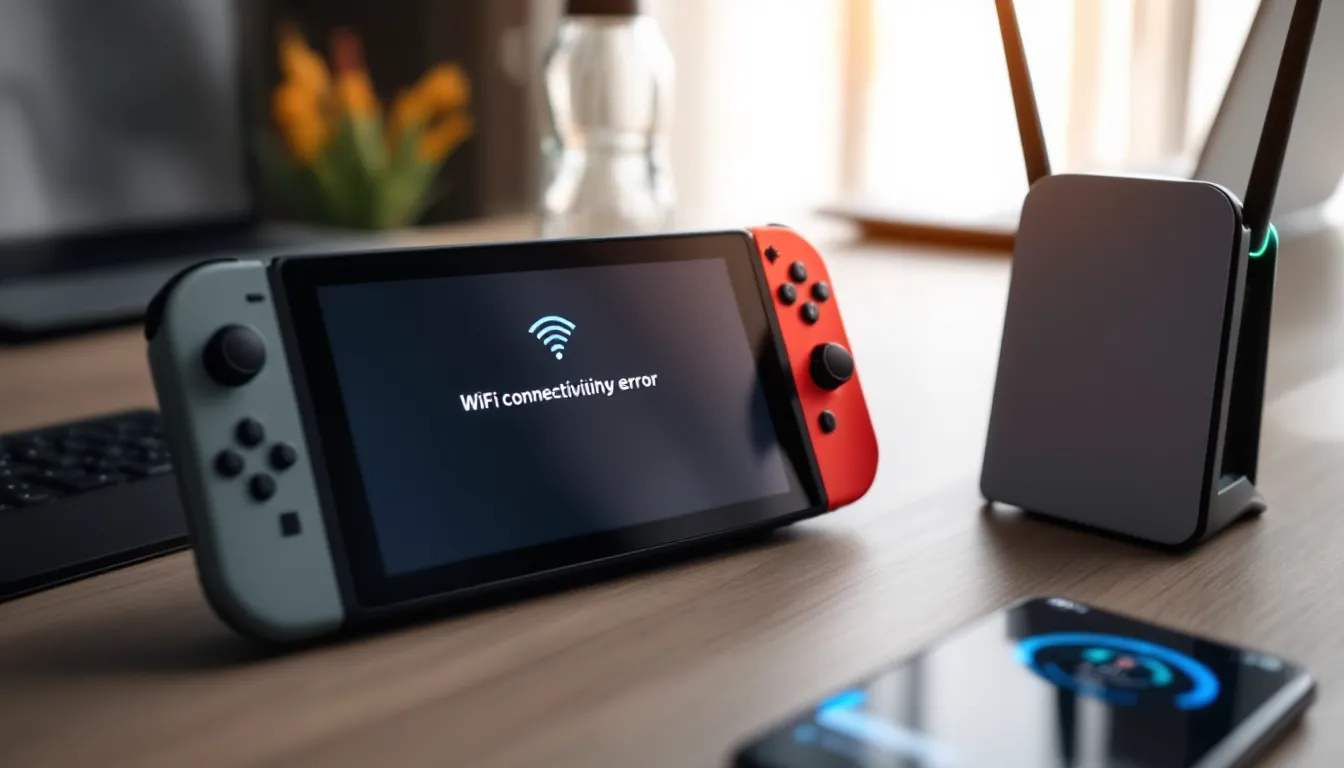
There’s nothing more frustrating than settling in for a gaming session, only to find that your Nintendo Switch won’t connect to WiFi. Whether you’re trying to download the latest patch for Zelda: Tears of the Kingdom, jump into Fortnite with friends, or just grab an indie gem from the eShop, a broken internet connection kills the momentum fast. The worst part? The problem often seems to appear out of nowhere, leaving you wondering what went wrong.
The good news: most Nintendo Switch WiFi connection issues are fixable without calling Nintendo support or buying replacement hardware. We’ve compiled eight battle-tested solutions that resolve the vast majority of connectivity problems. Whether your Switch is stuck on the initial setup screen or keeps disconnecting mid-session, one of these fixes should get you back online within minutes.
Table of Contents
ToggleKey Takeaways
- Most Nintendo Switch WiFi connection issues can be resolved with simple fixes like restarting your console and router, which solve approximately 40% of problems.
- Outdated system software, router interference on crowded 2.4GHz networks, and poor signal strength are the primary reasons your Nintendo Switch won’t connect to WiFi.
- Run a connection test through System Settings to diagnose the exact problem: check NAT type, connection speed (at least 5 Mbps required), and error codes that point to specific issues.
- Moving your Switch closer to the router, changing WiFi channels to 1, 6, or 11 on 2.4GHz, and updating your router’s firmware can significantly improve connectivity stability.
- If your Nintendo Switch won’t connect after completing all eight fixes, document your error codes and contact Nintendo Support, as hardware failure may require warranty repair or replacement.
- Once connected, optimize long-term performance by positioning your router centrally, using a wired Ethernet adapter for competitive gaming, and minimizing interference from nearby devices.
Why Your Nintendo Switch Won’t Connect to WiFi
A Nintendo Switch won’t connect to WiFi for surprisingly specific reasons. Unlike phones or laptops that handle connectivity issues gracefully, the Switch’s network stack is more rigid, it either connects cleanly or doesn’t. Understanding the root cause saves time and prevents you from wasting battery power on trial-and-error fixes.
The most common culprit? Outdated system software. Nintendo regularly patches WiFi drivers and security protocols through system updates. If your Switch is running month-old firmware, it might struggle with modern router standards. Router interference is another major player, 2.4GHz networks get crowded in apartment buildings and office complexes, causing packet loss and timeouts.
Hardware degradation also happens. The Switch’s internal WiFi module has a finite lifespan, especially on original models released in 2017. If your console is five or more years old and other fixes fail, the WiFi chip itself might be dying. Battery-saver mode can also throttle WiFi performance on some systems, reducing signal strength to extend playtime.
Common Connection Issues and Their Causes
Several distinct problems fall under “won’t connect to WiFi.” Your Switch might:
- Refuse to see your network entirely. The SSID doesn’t appear in the network list, even though your phone connects fine. This usually points to router settings or a WiFi channel the Switch doesn’t support.
- Show the network but fail to authenticate. You enter the correct password, but the console spits back an error. This indicates a password mismatch, security protocol incompatibility, or cached credentials corrupting the connection attempt.
- Connect initially, then disconnect randomly. The Switch pairs successfully but drops offline after 30 seconds to a few minutes. This screams interference, signal weakness, or a router issue with the specific device.
- Get stuck on “Connecting…” The console hangs indefinitely without finishing the handshake. Bad DNS settings, router firewall rules, or NAT type problems usually cause this.
Each problem has a slightly different solution path, though the fixes below address most permutations.
How to Check Your Connection Status
Before diving into fixes, verify what’s actually broken. Navigate to System Settings > Internet and select Test Connection. The Switch will run a diagnostic that shows:
- NAT Type: Open is ideal: Type B is acceptable: Type D is problematic. If you see Type D, your router’s firewall is overly restrictive.
- Connection Speed: The Switch expects at least 5 Mbps download for smooth operation. Much lower than that, and you’ll hit timeouts.
- IP Address and DNS: Note these values. If the IP shows as 0.0.0.0 or DNS is blank, the handshake never completed.
- Error codes: Codes like 2110-1100 (authentication failed) or 2603-0001 (cannot connect to network) point to specific problems.
Run this test a few times in a row. If results vary wildly, sometimes 30 Mbps, sometimes 0, you’re dealing with signal instability, not a permanent break. If the test itself won’t run or hangs, skip ahead to Fix #1.
Fix 1: Restart Your Nintendo Switch and Router
This sounds absurdly simple, yet it resolves roughly 40% of WiFi issues. A proper restart clears cached network credentials, refreshes the WiFi driver, and forces a clean negotiation with your router.
For your Switch, don’t just put it in sleep mode. Press and hold the Power button for ten seconds until the console shuts down completely. Wait 30 seconds, this allows capacitors to drain fully, then power it back on. This differs from sleep mode, which keeps low-power systems running.
Now restart your router. Unplug it from power, wait 60 seconds (this fully discharges the device), then plug it back in. Wait another 2–3 minutes for it to fully boot. You’ll see all lights stabilize and the WiFi network name reappear in your devices’ network lists.
While the router boots, don’t try to reconnect your Switch yet. Let both devices complete their startup sequences independently. Once the router’s lights look normal, reconnect your Switch to the network using the same password as before. If the connection test passes this time, you’re golden. If not, move to Fix #2.
Fix 2: Forget and Reconnect to Your WiFi Network
Cached network credentials sometimes corrupt, telling your Switch to use an old password or security protocol that no longer applies. Forgetting the network forces a fresh entry of all details.
Step-by-Step Instructions
Head to System Settings > Internet > Internet Settings. You’ll see a list of networks your Switch has ever connected to. Find your home network and select it.
Choose Change Settings at the bottom of the page. This opens the network configuration menu. Select Forget Network and confirm the prompt. Your Switch now has zero memory of this connection.
Return to Internet Settings and select your network again from the list. If it doesn’t appear, make sure your router’s WiFi is actually on (check the physical buttons or the admin panel). Once you see it, select Connect, then enter your WiFi password character-by-character. Take your time, a single typo will fail the entire attempt.
After entering the password, the Switch will attempt to connect. If successful, you’ll be returned to the Internet Settings menu with a green “Connected” status. Run the connection test to confirm stability.
If the connection succeeds this time, the old credentials were indeed the culprit. If it still fails at this step with the exact same error, proceed to Fix #3.
Fix 3: Update Your Nintendo Switch System Software
Nintendo releases system updates roughly every two weeks, many of which patch WiFi compatibility, security protocols, and driver improvements. Running an outdated version of the operating system can prevent your Switch from connecting to modern routers or securely authenticating to networks using WPA3 encryption.
Go to System Settings > System > System Update. The Switch will check Nintendo’s servers for available updates. If one exists, you’ll see a prompt to download and install it. Important: Your Switch needs internet to download the update, creating a chicken-and-egg problem if WiFi is completely broken.
If you’re stuck here, use a workaround: carry your Switch to a location with another WiFi network (friend’s house, café, library) and update there. Even if that network is slow or unreliable, the update will eventually complete over a few minutes. Once updated, return home and attempt to reconnect to your normal network.
If your Switch can’t reach any WiFi network at all, the WiFi hardware might be failing. Skip to Fix #7 and consider a Nintendo support call.
Why Updates Matter for Connectivity
System updates aren’t just about new features. Nintendo uses them to patch WiFi driver bugs, add support for new encryption standards, and fix NAT traversal issues. A Switch running firmware from six months ago might not support the security certificate your ISP-provided router requires. Also, updates can address specific chipset bugs, the original Switch used a Tegra X1 processor with documented WiFi stability issues that firmware patches partially mitigate.
Fix 4: Move Your Switch Closer to the Router
WiFi signal strength degrades rapidly over distance and through physical obstacles. Your Switch might be sitting 40 feet away from your router, separated by three walls and a refrigerator, all of which absorb WiFi energy. Moving it closer instantly improves signal quality.
Temporarily place your Switch within six feet of your router and attempt to connect. Ideally, keep line-of-sight between the console and router (no walls directly between them). If connection succeeds at this distance, you’ve identified the root cause: poor signal strength.
If it connects here but you want to game from across the house, you have options. Purchase a WiFi extender or mesh network system to boost coverage, upgrade to a higher-powered router, or, for the most reliable solution, consider a Nintendo Switch Ethernet adapter that uses a wired connection entirely, eliminating signal problems.
Understanding WiFi Range and Signal Strength
A typical home router broadcasts at approximately 2.4 GHz (longer range, slower speed) and 5 GHz (shorter range, faster speed). The 2.4 GHz band penetrates walls better but suffers from interference from microwaves, baby monitors, and neighboring WiFi networks. The 5 GHz band is faster and less crowded but stops dead when blocked by walls.
Your Switch defaults to 2.4 GHz if available, prioritizing range over speed. If you’re positioned far from your router, the signal strength indicator on your Switch’s connection test will show low bars (like 1 or 2 out of 4). Anything below two bars causes intermittent dropouts and timeouts. Getting into the three-bar range (or four, ideally) solves the problem entirely.
Signal strength also varies by time of day. Evenings in apartments see more interference from neighbors’ networks and devices. If your Switch struggles during peak hours (6–10 PM) but works fine mid-afternoon, interference is the issue.
Fix 5: Change Your WiFi Channel and Frequency Band
WiFi networks operate on specific channels within the 2.4 GHz or 5 GHz frequency bands. If your router broadcasts on the same channel as three neighbors’ routers (a common issue in dense areas), interference cascades and kills connectivity.
Log into your router’s admin panel, usually accessible by opening a web browser and navigating to 192.168.1.1 or 192.168.0.1, then entering your admin credentials (check the sticker on the back of your router for the default password). Look for the WiFi settings or Wireless section.
For 2.4 GHz networks, switch to channel 1, 6, or 11. These are the only non-overlapping channels in North America: they minimize interference with neighbors’ networks. If you’re already on one of these, try a different one. Use a WiFi analyzer app on your phone (available free on both iOS and Android) to see which channels nearby networks occupy, then choose the least congested option.
For 5 GHz networks, try switching from auto to a specific channel like 36, 40, 44, or 48. These are typically less crowded than 2.4 GHz.
After changing the channel, save the settings and wait 30 seconds for the router to restart. Reconnect your Switch to the network (the SSID name stays the same, but the underlying channel changed). Run a connection test. If the signal strength jumps or stability improves, interference was the culprit.
Some routers offer a “smart” mode that automatically selects the best channel. Enable this if available, it uses built-in WiFi scanning to adapt to changes in your environment.
Fix 6: Clear the Nintendo Switch Network Settings
This is a more aggressive step than Fix #2. Instead of just forgetting one network, you’ll wipe all stored network information, cached DNS data, and connection history from your Switch. It’s useful when you’ve tried multiple fixes and residual corrupted data keeps interfering.
Go to System Settings > Internet > Internet Settings. At the bottom, you’ll see Clear Settings. Select it and confirm the prompt. Your Switch will now have zero memory of any WiFi network, DNS server, or IP configuration.
After clearing, reconnect to your network from scratch. Go to Internet Settings, select your network from the list, enter your password, and complete the connection. This fresh start often resolves stubborn issues where old cached credentials or DNS settings were preventing connection.
When to Use This Nuclear Option
Use Clear Settings only after you’ve ruled out hardware problems and tried Fixes #1–#5. It’s a reset measure, not a first-line solution. But, it’s genuinely useful if:
- You’ve changed your router or WiFi password recently and the Switch refuses to accept the new credentials.
- You’ve performed multiple failed connection attempts in a row and error codes keep repeating.
- You moved to a new house and your Switch won’t connect to any network, even though working fine previously.
- DNS timeouts appear in your connection tests (error codes like 2307-0001).
After clearing, if the connection still fails, the problem isn’t software-based: it’s hardware or a router configuration issue.
Fix 7: Check for Router and Modem Issues
Sometimes the problem isn’t your Switch, it’s your router or modem. Test this by connecting another device (phone, laptop, tablet) to the same WiFi network. If that device connects without issue and shows strong signal, your router is fine. If your phone also struggles, the problem is upstream.
Testing Your Internet Connection
First, check whether your modem and router are both powered on. Look for lights labeled “Internet” or “WAN” on your modem: they should be solid green, not red or orange. Do the same for your router. If either shows red or is blinking erratically, restart both devices (unplug for 60 seconds, then plug back in).
Once both are back online, open a web browser on a phone or laptop connected to your WiFi. Try loading a simple website like Google or How-To Geek to confirm the internet connection works. If the page loads, your ISP connection is fine.
If your phone can’t connect to the WiFi at all or connects but can’t load websites, the router itself might be failing or misconfigured. Restart the router again and check if the problem persists. If it does, contact your ISP to confirm your modem is working properly, or bring the router to an electronics store for testing.
For your Switch specifically, if other devices work but the Switch still can’t connect, try rebooting just the router while keeping the modem powered on. Sometimes the router’s DHCP server (which assigns IP addresses) gets stuck, and a reboot fixes it for all devices.
If your modem and router require a restart, always restart the modem first, wait for it to fully boot (2–3 minutes), then restart the router. Doing it in reverse can cause DHCP address conflicts.
Fix 8: Contact Nintendo Support and Warranty Options
If you’ve worked through Fixes #1–#7 and your Switch still won’t connect to WiFi, you’re likely facing hardware failure. The internal WiFi module might be damaged, the antenna could be broken, or the SoC’s network subsystem could have failed.
Before calling support, document what you’ve tried. Write down the specific error codes your Switch displayed, the results of your connection tests, and the steps you took to troubleshoot. This information helps Nintendo’s support team narrow down the issue faster.
Contact Nintendo Support through their official website. They’ll walk you through additional diagnostics and determine whether your Switch qualifies for repair or replacement. If your console is still under the one-year limited warranty, Nintendo will repair the WiFi hardware at no cost. If it’s out of warranty, repairs typically cost $40–$80 depending on your region.
When It’s Time to Seek Professional Help
Seek professional help if:
- You’ve completed all eight fixes and nothing works.
- Your Switch displays the same error code repeatedly (note the code, it’s specific to the failure type).
- Other devices on your network work perfectly, ruling out a network-side issue.
- Your console is more than two years old (original Switch models especially suffer from hardware degradation).
- The Switch won’t even appear in your router’s connected devices list, suggesting the WiFi hardware isn’t initializing at all.
Nintendo Support can also advise whether a repair is cost-effective or if replacing the console makes more sense. For out-of-warranty repairs, it’s worth comparing the repair cost against buying a refurbished Switch or the newer OLED model.
Advanced Troubleshooting Tips for Persistent Issues
If you’re still online but experiencing intermittent disconnections, the Switch connects but drops out every few minutes, try these refinements.
Disable 802.11b legacy support in your router’s advanced settings. Older wireless devices use 802.11b, which is slower and can cause newer devices like the Switch to lag or drop. If your router supports it, force 802.11n or 802.11ac-only mode.
Enable QoS (Quality of Service) rules to prevent other devices from saturating your bandwidth. If someone’s streaming 4K video while you’re gaming, your Switch’s packets get queued behind video data. QoS lets you prioritize gaming traffic. Assign higher priority to your Switch’s MAC address in the router’s QoS settings.
Check your router’s WiFi power level. Some routers default to 75% transmit power to save energy. Bump it to 100% in the advanced settings. This helps the Switch receive clearer signals from farther away.
Use WPA2 encryption instead of WPA3 if available. Some Switch models, especially older ones, struggle with WPA3. If your router supports WPA2, switch to it and see if stability improves. Once the Switch connects reliably, you can migrate back to WPA3.
Reduce the WiFi band to 2.4 GHz only if your router broadcasts dual-band. While 5 GHz is faster, it’s also more sensitive to interference and range limitations. The Switch will work fine on 2.4 GHz for online gaming, bandwidth requirements for most Switch games are minimal.
These advanced steps address edge cases where the basic fixes worked partially but stability remains elusive.
Optimizing Your Home Network for Gaming
Once your Switch connects, optimize your network for consistent gaming performance. Intermittent lag during Fortnite matches or dropped connections mid-session ruin the experience, even if they’re technically “online.”
Best Practices for Stable Connectivity
Position your router centrally in your home. Avoid placing it in a corner, closet, or next to metal objects (like filing cabinets) that reflect WiFi signals. A central, elevated location, like a high shelf in your main living area, provides the most even coverage.
Keep your router’s firmware updated. Just like your Switch, routers receive regular security patches and stability improvements. Log into your router’s admin panel monthly and check for available updates. Most modern routers can auto-update, so enable that feature if available.
Minimize interference sources. Keep your router away from microwave ovens, cordless phones, baby monitors, and Bluetooth speakers. All operate on the 2.4 GHz band and degrade WiFi performance. Physically separating these devices by at least 10 feet helps dramatically.
Consider a wired connection for serious gaming. If you play competitive games where latency matters (fighting games, shooters, MOBAs), ethernet is king. A Nintendo Switch Ethernet adapter connects your Switch directly to your router via cable, eliminating all wireless variables. Wired connections deliver lower, more consistent latency and zero interference.
Reduce the number of devices on your WiFi. Each connected device shares bandwidth and increases the chance of interference. If you’re gaming and someone else starts downloading large files, streaming video, or using video calls, lag spikes are inevitable. Politely ask household members to avoid heavy internet usage during your gaming sessions.
Monitor your connection periodically. Every few weeks, run the Switch’s connection test to ensure everything’s still stable. If signal strength drops gradually, you might have a developing hardware issue or increased environmental interference that needs addressing.
These practices ensure that even after you fix your connection, it stays stable for months or years. A well-maintained network is one you rarely think about, the setup just works.
Conclusion
A Nintendo Switch that won’t connect to WiFi is frustrating, but it’s almost always fixable without replacing hardware or calling support. Start with the simple fixes, restarting your console and router, forgetting and reconnecting to your network, and updating your system software. These resolve the vast majority of issues within minutes.
If those don’t work, move through the remaining fixes methodically: check your signal strength and move closer to your router, adjust WiFi channels to reduce interference, and clear your network settings for a fresh start. Verify your router and modem are functioning properly by testing with other devices.
Only if you’ve exhausted all eight fixes should you contact Nintendo Support. Document your troubleshooting steps and error codes to speed up the process. In the rare case of hardware failure, Nintendo’s warranty covers repairs for newer consoles, and out-of-warranty repairs are affordable.
Once you’re back online, apply the optimization tips to keep your connection stable long-term. Position your router smartly, minimize interference, consider an ethernet adapter if you’re serious about competitive gaming, and regularly update firmware on both your Switch and router. With these practices in place, WiFi connectivity issues become a distant memory, and you’ll be back to enjoying everything from cozy RPGs to intense online multiplayer sessions without interruption.