
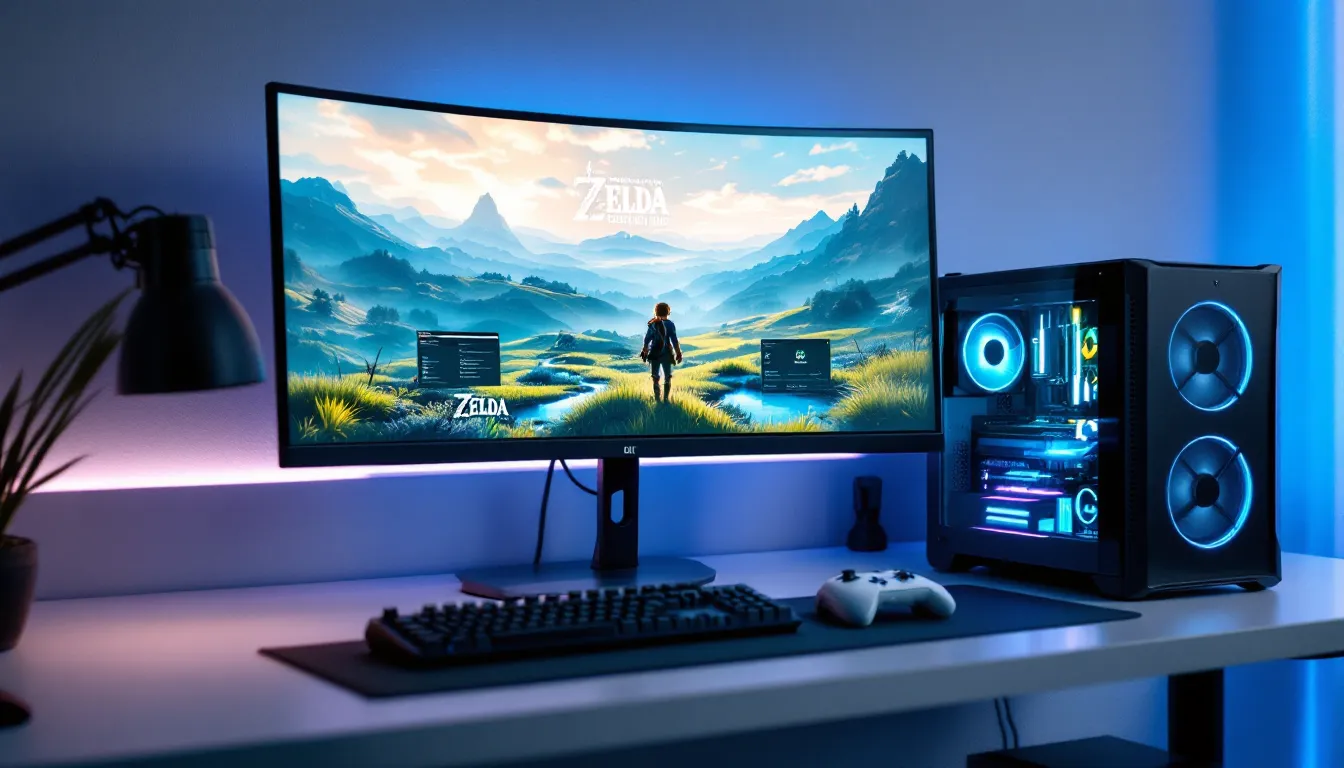
Nintendo Switch emulation has evolved into a serious pursuit for gamers who want to experience their favorite titles on PC with enhanced graphics, faster load times, or portability beyond handheld mode. Whether you’re curious about what emulation actually is, wondering about the legality of the practice, or ready to immerse and set up your first emulator, this guide covers everything you need to know. The emulation scene has matured significantly in 2026, with stable emulators becoming increasingly user-friendly and capable of running demanding games at playable frame rates. We’ll walk you through the landscape of popular Nintendo Switch emulators, break down the real hardware requirements, and show you how to optimize your setup for the best possible experience. By the end, you’ll have a clear understanding of whether Nintendo Switch emulation is right for you and exactly how to get started.
Table of Contents
ToggleKey Takeaways
- Nintendo Switch emulation allows you to play games on PC with enhanced graphics, higher frame rates, and resolutions up to 4K compared to the original hardware limitations.
- Yuzu and Ryujinx are the two dominant Nintendo Switch emulators that have matured into stable, user-friendly tools with broad game compatibility ratings and active community support.
- Your CPU is more important than your GPU for smooth Switch emulation; aim for at least an Intel i5-8400 or AMD Ryzen 5 2600 for playable performance at 1080p.
- Nintendo Switch emulation sits in a legal gray zone—downloading ROMs of games you don’t own is piracy, but emulating cartridges you physically own is on more solid ethical and legal ground.
- Shader caches and graphics optimization (Vulkan backend, resolution scaling, anisotropic filtering) are key to unlocking stable 60 FPS gameplay and significantly improved visual quality.
- Online multiplayer has limited support in Switch emulators, so local gameplay works fine but expect broken or unavailable ranked online features like Mario Kart 8 Deluxe’s online modes.
What Is Nintendo Switch Emulation?
Nintendo Switch emulation is the practice of running Switch games on a non-Nintendo device, typically a gaming PC, laptop, or occasionally higher-end Android phones, using software that mimics the Switch’s hardware. An emulator essentially translates the game’s code and assets from the Switch’s architecture into instructions your PC can execute, allowing you to play titles designed for Nintendo’s hybrid console on your own machine.
The key difference between emulation and simply playing on a Switch comes down to flexibility and performance. On a real Switch, you’re bound by the console’s fixed hardware capabilities: 1080p docked or 720p handheld at a locked 30 or 60 FPS depending on the game. With emulation, you gain the ability to push frame rates beyond the original, upscale graphics to 1440p or even 4K, and customize virtually every aspect of the experience. Games like The Legend of Zelda: Breath of the Wild or Cyberpunk 2077 can run at significantly higher frame rates and resolutions through a capable emulator.
Emulation works by translating the Switch‘s ARM-based CPU instructions and GPU commands into x86 code your PC can run. This isn’t a simple process, emulators spend years in development to achieve compatibility and stability. The two dominant emulators, Yuzu and Ryujinx, have made enormous strides in recent years, moving from “experimental” territory to genuinely playable.
It’s worth noting that emulation isn’t emulation if the experience is choppy, buggy, or crashes every other session. You’ll see references to “full compatibility” or “playable” ratings for specific games, but the real measure is whether you can sit down and enjoy a title without technical headaches.
Legal and Ethical Considerations
This is the section where we have to be direct: the legality of Nintendo Switch emulation sits in a gray zone, and your jurisdiction matters.
Downloading or distributing copyrighted games (ROMs) without owning them is illegal in most countries, including the US, UK, and Canada. Nintendo is famously protective of its intellectual property and has taken legal action against ROM distribution sites and emulator developers in the past. The emulator software itself, Yuzu, Ryujinx, etc., lives in legal limbo: the tools are legal to possess and use, but their primary purpose is to run copyrighted games, which complicates things.
The practical reality: If you own physical Switch cartridges, you’re on more solid ground ethically and legally when dumping and playing those ROMs through an emulator. Many emulation enthusiasts argue this is “preservation,” though that defense wouldn’t hold up in court against Nintendo’s lawyers. If you’re downloading ROMs of games you don’t own, you’re engaging in piracy, plain and simple.
Nintendo’s position is crystal clear, they view emulation as a threat to their business, regardless of the nuances around ownership or preservation. They’ve shut down emulation forums, pursued cease-and-desist letters against developers, and lobbied for stricter anti-circumvention laws. Whether that’s fair or not, it’s the reality.
Our take: This guide assumes you’re either playing games you own or are aware of the legal risks in your jurisdiction. We’re not here to police your choices, but we’re also not going to pretend there aren’t real consequences if Nintendo decides to enforce their rights. Stay informed, make your own decisions, and don’t be surprised if the landscape shifts in the coming years.
Popular Nintendo Switch Emulators Explained
Yuzu Emulator
Yuzu is arguably the most well-known Nintendo Switch emulator and has been the gold standard for playability and feature completeness. Developed by the Yuzu team and initially released around 2018, it’s an open-source project that’s benefited from countless community contributions over the years.
What makes Yuzu stand out is its compatibility breadth, the vast majority of commercial Switch games run at least “playable” status, with hundreds marked as fully compatible. Games like Super Smash Bros. Ultimate, Mario Kart 8 Deluxe, Hollow Knight, and Hades run exceptionally well. Yuzu handles both CPU emulation and GPU rendering with a focus on accuracy, which translates to fewer crashes and edge-case bugs compared to earlier emulation attempts.
Yuzu supports shader caching (which speeds up load times on subsequent runs), upscaling options via external tools, and detailed graphics settings for fine-tuning performance. The community has created an extensive compatibility database where users can check whether a specific game will run and what settings work best.
One downside: Yuzu has become more resource-intensive as it’s prioritized accuracy. You’ll need a solid CPU and GPU to run demanding titles smoothly, which we’ll cover in the system requirements section.
Ryujinx Emulator
Ryujinx is the primary alternative to Yuzu, written from scratch in C# by gdkchan and contributors. It’s also open-source and offers a different philosophical approach to emulation, sometimes favoring compatibility and ease of use over bleeding-edge accuracy.
Ryujinx tends to be slightly lighter on system resources than Yuzu in some scenarios, though the difference isn’t massive. Its main appeal is a cleaner user interface and straightforward setup process. The emulator includes built-in game upscaling, profile management, and a robust settings menu that doesn’t feel overwhelming for newcomers.
Compatibility is solid, though historically Ryujinx lagged behind Yuzu in the breadth of playable titles. That gap has narrowed significantly in recent years. Games run comparably well on both emulators, and for many titles, you’ll struggle to notice a meaningful difference in frame rates or visual quality.
Ryujinx is often recommended for users who want a “set it and forget it” experience with less tinkering. If you’re not the type to spend hours tweaking graphics settings, Ryujinx’s simpler workflow might suit you better.
Other Notable Emulators
Beyond Yuzu and Ryujinx, there are other emulation projects worth mentioning, though they’re less mature or widely used.
Cemu is actually a Wii U emulator, not Switch-specific, but it deserves mention because it shares a similar community and philosophy. If you’re interested in emulating older Nintendo hardware, Cemu is the gold standard.
Dolphin emulates GameCube and Wii and is arguably the most polished console emulator ever created. It’s worth exploring if you want to revisit classic Nintendo games with enhanced graphics and perfect compatibility.
For the Nintendo Switch specifically, Yuzu and Ryujinx dominate the space. Smaller projects exist in various stages of development, but they don’t offer advantages over the two main options for most users.
System Requirements for Smooth Emulation
Here’s where emulation gets real: your hardware matters. A lot. Nintendo Switch emulation isn’t like playing a native PC port, the emulator has to do the heavy lifting of translating and rendering everything on the fly.
Minimum (Playable, Not Pretty):
- CPU: Intel i5-8400 or AMD Ryzen 5 2600 (6-core/6-thread, 3.0 GHz+)
- GPU: NVIDIA GTX 1060 (3GB) or AMD RX 570
- RAM: 8GB DDR4
- Storage: SSD with 10GB+ free space (emulator, shader cache, and game files accumulate quickly)
- OS: Windows 10/11 64-bit (Linux and macOS are supported but less optimized)
At this level, you’re looking at 1080p 30-45 FPS on less demanding games like Stardew Valley or Hollow Knight. Demanding titles will require frame rate drops or graphics compromises.
Recommended (Solid 60 FPS, 1080p-1440p):
- CPU: Intel i7-10700K or AMD Ryzen 7 3700X (8-core, 3.6 GHz+)
- GPU: NVIDIA RTX 2080 or AMD RX 5700 XT
- RAM: 16GB DDR4
- Storage: NVMe SSD with 20GB+ space
- OS: Windows 10/11 64-bit
This sweet spot lets you run most games at 1080p-1440p with stable 60 FPS. Intensive games like Cyberpunk 2077 or Tears of the Kingdom still require graphics tweaks, but you’re in solid territory.
High-End (4K, High Frame Rates):
- CPU: Intel i9-13900K or AMD Ryzen 9 7950X
- GPU: NVIDIA RTX 4090 or AMD RX 7900 XTX
- RAM: 32GB DDR5
- Storage: NVMe SSD with 50GB+ space
- OS: Windows 11 64-bit
With this hardware, you can push 4K resolution on most games, maintain 60+ FPS, and crank graphics settings without compromises.
A few critical notes: First, your CPU matters more than your GPU for Switch emulation. The emulator is CPU-bound when translating game instructions, so a strong processor is non-negotiable. Second, thermal management is essential. Your CPU and GPU will run hot during emulation: good case airflow and cooling are investments that pay dividends in stability. Third, driver updates matter. NVIDIA and AMD regularly release driver updates that improve emulation performance. Stay current.
One more thing: some games have specific quirks. Xenoblade Chronicles 3 is notorious for being demanding and will push even high-end systems. Mario Kart 8 Deluxe and Splatoon 3 hit different performance profiles than single-player adventures. Check community reports for your target game before assuming your hardware is sufficient.
How to Set Up Your First Emulator
Step-by-Step Installation
Let’s walk through setting up Yuzu, since it’s the most popular. The process is similar for Ryujinx, just with different UI elements.
Step 1: Download and Install Yuzu
Head to the official Yuzu website and download the latest stable release for your OS (Windows, Linux, or macOS). Extract the zip file to a folder on your computer, something like C:Gamesyuzu keeps things organized. Yuzu doesn’t require a traditional installer: you’re just running the executable directly.
Step 2: Set Up Your Game Directory
Yuzu needs to know where your game files (ROMs) live. Launch Yuzu and go to File → Game List → Add Game Folder. Point it to wherever you’ve stored your game files. Yuzu will scan and catalog them automatically.
If you haven’t dumped your games yet, you’ll need to do that from a real Switch using tools like Homebrew and dumping software. That’s beyond this guide’s scope, but guides exist online for the technical steps. The short version: it’s legal if you own the cartridges, technical if you don’t, and we’re not your enablers here.
Step 3: Configure Controller Input
Go to Emulation → Configure → Controls. Map your Xbox controller, PlayStation 5 controller, or generic gamepad to the Switch’s button layout. Yuzu detects most controllers automatically, but you might need to manually assign buttons depending on your hardware.
If you’re using a DualSense (PS5 controller), Yuzu handles the adaptive triggers and haptic feedback beautifully, games like Astral Chain feel legitimately different with proper controller feedback.
Step 4: Initial Settings Check
Before launching a game, go to Emulation → Configure → General. Make sure your graphics backend is set to Vulkan (not OpenGL) if your GPU supports it, Vulkan performs significantly better on modern hardware. Set your CPU threads to match your processor’s core count minus one. So if you have an 8-core CPU, set it to 7.
Step 5: Launch a Game
Double-click any game in your library. Yuzu will boot it up. Don’t expect silky performance on your first try, the emulator is building shader caches, loading assets, and doing a lot of heavy lifting.
Configuring Graphics and Performance Settings
This is where emulation gets finicky, but also where you can unlock serious performance gains.
Graphics API Selection:
Vulkan is the modern standard and offers better performance than OpenGL. If you’re on NVIDIA or AMD, Vulkan should be your first choice. Check your driver version to ensure Vulkan support.
Resolution Scaling:
Yuzu defaults to 1x (original 1080p docked). You can push this to 1.5x (1620p), 2x (2160p/4K), or higher. Each step demands more GPU power. Start at 1x, get a stable baseline, then experiment upward.
Docked vs. Handheld:
Choose “Docked” if you want the full 1080p experience. “Handheld” renders at 720p but sometimes performs better on lower-end hardware.
GPU Accuracy:
Set this to “Normal” for the best balance. “High” offers better accuracy but tanks performance. “Low” is for older hardware and introduces visual artifacts.
V-Sync:
Turn this on if you have a 60Hz or 144Hz monitor and want to match that refresh rate. Turning it off can introduce screen tearing but gives you higher frame rates.
Async GPU Emulation:
Enable this. It offloads GPU work to a separate thread, improving overall performance.
Shader Cache:
Yuzu builds this automatically, but the first launch of any game is slow while shaders compile. Subsequent launches are much faster. Patience on game #1, speed on game #2.
A practical example: The Legend of Zelda: Breath of the Wild is a great test case. On a Ryzen 5 3600 and RTX 2070, you’ll get around 50-60 FPS at 1440p with Vulkan and moderate settings. Push resolution to 4K and you’ll see drops to 30-40 FPS. Find your comfort zone.
Optimizing Your Emulation Experience
Achieving Stable Frame Rates
Stable frame rates are the difference between a pleasant gaming session and a frustrating one. Hitting 60 FPS consistently beats hitting 80 FPS intermittently with stutters, your brain notices the inconsistency more than the absolute number.
CPU Affinity:
Yuzu has a setting to pin emulation threads to specific CPU cores. If your processor has E-cores (efficiency cores) like newer Intel chips, pinning to P-cores (performance cores) can help. This requires some manual configuration but pays dividends on mixed-core processors.
Power Settings:
Set your Windows power plan to “High Performance” mode. On laptops, disable power-saving features that throttle your CPU during gaming. You’ll run hotter and burn more battery, but emulation performance will be rock-solid.
Background Tasks:
Close Discord, web browsers, and streaming software before launching demanding games. RAM is plentiful these days, but the CPU time consumed by background tasks is real. A clean desktop gets you 5-10 extra FPS on the margins.
Game-Specific Overclocking:
If you’re comfortable with it, mild CPU or GPU overclocks can push a struggling title into the playable range. A +100-150 MHz CPU clock or +50 MHz memory clock on your GPU is generally safe. Aggressive overclocking risks instability and hardware damage, not worth it for emulation.
Shader Cache Precompilation:
The emulation community has compiled pre-built shader caches for popular games that are available for download. Using these eliminates the first-launch stutter. This is technically using community tools (like those on Nexus Mods), which is kosher.
Improving Graphics Quality
Beyond hitting frame rates, emulation lets you push visual fidelity beyond what the original Switch could ever achieve.
Upscaling Filters:
Yuzu supports several upscaling methods. The default is bilinear filtering, which is clean but slightly blurry at high resolutions. FSR (FidelityFX Super Resolution) offers decent upscaling at lower performance costs, while DLSS-like super-resolution techniques are available through shader packs.
Anisotropic Filtering:
Enable 16x anisotropic filtering in Yuzu’s graphics settings. This makes textures look crisp at oblique angles, noticeable in games with detailed ground textures like Breath of the Wild.
Anti-Aliasing:
MSAA (Multisample Anti-Aliasing) smooths jagged edges. 4x MSAA is a good baseline: 8x can be overkill depending on your resolution. This has a GPU cost but drastically improves image quality.
Texture Filtering:
Set this to “Optimized” or “True” depending on your GPU. “True” is more accurate but slower. Most games don’t show a massive difference.
Ray Tracing (Experimental):
Yuzu has experimental ray tracing support for select games, but it’s buggy and resource-intensive. Skip this unless you’re specifically testing, not playing.
Custom Shaders:
The community has created various shader packs (available through sites like Nexus Mods) that add bloom, depth-of-field, or color grading to games. These are post-processing effects applied after rendering, so they cost minimal performance but add visual polish. Hollow Knight looks particularly good with noir-style shader mods.
Color Space Calibration:
If you have a quality monitor, calibrate your color space before gaming. Emulation output is only as good as what your display can reproduce. This is a deeper rabbit hole, but proper color calibration makes emulated games look noticeably better.
Troubleshooting Common Emulation Issues
Emulation is stable these days, but quirks still happen. Here are the most common problems and practical fixes.
Game Won’t Launch or Crashes Immediately
First check: Is the game marked as “Playable” or “Full Compatibility” in Yuzu’s compatibility database? If it’s “Experimental” or “Intro Only,” you’re running into known issues that might not have fixes yet.
If the game should work, try these steps in order:
- Delete your shader cache for that specific game (Yuzu stores these in
AppData/Local/yuzu) - Update to the latest Yuzu build
- Try a different graphics backend (Vulkan vs. OpenGL)
- Lower resolution and graphics settings to bare minimum to isolate if it’s a performance issue
- Verify your ROM isn’t corrupted (check the file size against known good dumps)
Low Frame Rates or Stuttering
Stuttering usually means shader compilation is happening in real-time. Solutions:
- Wait for the shader cache to complete (can take 5-10 minutes for demanding games)
- Download a pre-compiled shader cache from the community
- Disable V-Sync and cap frame rates at 60 with a frame limiter if you’re running above your monitor’s refresh rate
- Reduce resolution by one step and re-test
- Monitor your CPU and GPU usage with MSI Afterburner, if you’re maxed out, you’ve found your bottleneck
Audio Crackling or Out of Sync
Audio bugs are less common in 2026, but they happen:
- Update your audio drivers
- In Yuzu settings, try changing the audio backend (WASAPI, Cubeb, etc.)
- Enable audio stretching to match video frame rate
Graphics Glitches or Missing Textures
Sometimes games render incorrectly:
- Toggle GPU accuracy between “Normal” and “High”
- Try the alternate graphics backend
- Check if there’s a community workaround posted in the game’s compatibility notes
Controller Not Detected
Some controllers don’t play nice with Yuzu:
- Try unplugging and reconnecting
- Go to Emulation → Configure → Controls and manually re-map
- Update your controller firmware (DualSense controllers especially benefit from this)
- Test in Windows’s controller settings to confirm Windows detects it first
Game Runs But Motion Controls Don’t Work
Motion control emulation is tricky. If a game relies heavily on motion (like Ring Fit Adventure), emulation might not be ideal. Some workarounds exist through community tools, but they’re imperfect. For most games that support both motion and button input, just use buttons.
Online Multiplayer Isn’t Working
Emulators struggle with network features. Mario Kart 8 Deluxe online, Splatoon 3, and other online-heavy titles have limited or broken online play in emulators. This is a known limitation with no easy fix, local multiplayer works fine, but don’t expect to jump into ranked matches.
The Future of Nintendo Switch Emulation
The emulation landscape is moving fast, and several trends are worth watching.
Hardware Progression:
As CPUs and GPUs get faster, the performance bar for “smooth emulation” shifts. Games that required tweaking in 2024 now run flawlessly at stock settings on midrange 2026 hardware. This trend continues, emulation becomes more accessible as a hobby as hardware improves.
Legal Pressure:
Nintendo’s recent legal actions against emulation projects have created uncertainty. Yuzu faced particular scrutiny in 2023-2024, with the team eventually stepping back. But, other projects have filled the void. The cat-and-mouse game between rights holders and emulation communities shows no sign of stopping, but the decentralized nature of open-source projects makes them hard to kill permanently.
Accuracy vs. Performance Trade-offs:
You’ll see continued refinement in both directions. Newer emulators might prioritize cycle-accurate CPU emulation (matching the Switch’s exact instruction pipeline) at the cost of performance, appealing to enthusiasts and preservation advocates. Others will lean harder into performance optimizations for the mass-market audience.
AI Upscaling Integration:
Shader packs using AI upscaling models (like ESRGAN) are becoming more common. Real-time AI upscaling could become a standard feature in emulators, letting you run lower internal resolution but output 4K quality visually. The performance trade-off is worth it for many players.
Nintendo Switch 2 Emulation:
When Nintendo’s next hardware drops (expected 2026 or later), emulation developers will face the choice: support the new hardware or stick with Switch 1 compatibility. Based on historical precedent, we’ll see both. Switch 1 emulation will stabilize and mature, while Switch 2 emulation becomes the new frontier.
Cross-Platform Compatibility:
Emulation is expanding to mobile and other platforms. Your average mobile phone can’t emulate Switch games yet, but ARM-based high-end devices are getting closer. You might eventually play emulated Switch games on a powerful Android tablet without a PC in the loop.
The emulation scene thrives on community passion, developer ingenuity, and the natural human desire to preserve and improve upon games we love. Whether Nintendo tries to stamp it out or not, emulation will persist. The tools and techniques get better every year.
Conclusion
Nintendo Switch emulation in 2026 is genuinely approachable for anyone with a competent gaming PC and patience to work through initial setup. The technology has matured beyond the “experimental” phase, Yuzu and Ryujinx are stable, capable, and actively maintained by dedicated communities.
The best Nintendo Switch emulator depends on your priorities. Yuzu edges out Ryujinx for raw compatibility and feature depth, but Ryujinx wins on ease of use and resource efficiency. Both are free, open-source, and legitimate tools to own and use.
Here’s what you need to remember: Your hardware matters (especially CPU), your game choice matters (some titles emulate beautifully, others less so), and patience with initial setup pays off. The first launch of a game is slow while shaders compile: subsequent launches are seamless. Treat it as an investment in unlocking hundreds of hours of enhanced gaming.
If you’re a gamer who owns Switch cartridges and wants to experience those games with better graphics, performance, or modding potential on your PC, emulation is genuinely the answer. If you’re looking to pirate games, understand the legal and ethical weight of that choice. Either way, the technology exists and continues to improve. The decision is yours, but you’re now armed with the knowledge to make an informed one.
Start with a single game you know and love. Get it running stable at 60 FPS. Once you feel that buttery-seamless process, you’ll understand why the emulation community is so passionate about the hobby. From there, the rabbit hole goes as deep as you want it to.