
The Nintendo Switch OLED dock might seem like a simple piece of hardware, but it’s actually the gateway between your handheld gaming and your big-screen experience. Whether you’re rushing through Zelda: Tears of the Kingdom on a 4K TV or setting up your first Switch console, understanding your OLED dock, its specs, compatibility, and setup, makes all the difference. This guide covers everything you need to know about the Nintendo Switch OLED dock, from unboxing to troubleshooting, so you can dock with confidence and get gaming faster.
Table of Contents
ToggleKey Takeaways
- The Nintendo Switch OLED dock transforms handheld gaming into a full home console experience by charging your console while outputting 1080p video at 60fps to your TV.
- The OLED dock is officially compatible only with the Switch OLED model; while it can physically dock the original Switch, Nintendo doesn’t officially support this configuration.
- Monthly maintenance—including compressed air cleaning of internal contacts and dust prevention—keeps your Nintendo Switch OLED dock operating reliably for years.
- The official dock costs $89–$99 USD and requires a specific 39W USB-C power supply; well-reviewed third-party alternatives like the Genki Covert Dock Pro offer portability and multi-model support at the cost of warranty protection.
- If your dock experiences intermittent charging, HDMI dropouts, or loose clamping after extended use, troubleshooting starts with contact cleaning and cable verification before considering replacement.
What Is The Nintendo Switch OLED Dock?
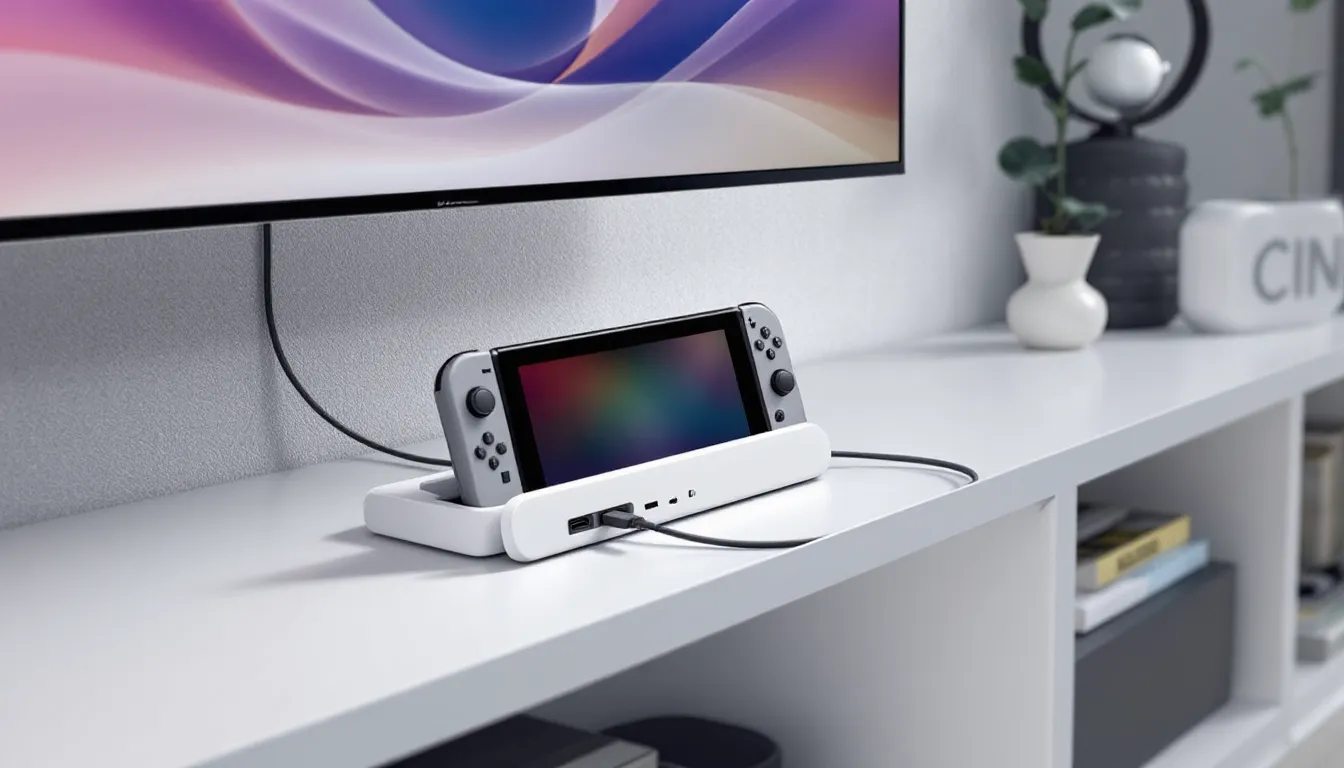
The Nintendo Switch OLED dock is Nintendo’s docking station for the Switch OLED model, released in October 2021. It’s the piece of hardware that transforms your Switch from a portable handheld into a full-fledged home console experience. When you slide your OLED console into the dock, it charges the device while simultaneously outputting video and audio to your TV.
Think of it as the bridge between mobility and stationary gaming. The dock handles all the heavy lifting, power delivery, video processing, audio routing, so you can kick back on your couch and play your favorite titles on a larger screen. The OLED dock is specifically engineered for the Switch OLED model’s internal architecture, which matters when we talk about compatibility later.
What makes the OLED dock different from earlier Switch docks is its improved build quality and refined port arrangement. Nintendo listened to complaints about dock scratches and connection issues from the original Switch launch, and the OLED dock reflects those lessons. The dock is wider, featuring a more secure clamping mechanism and better ventilation to keep your console cool during extended docking sessions.
Official Nintendo Switch OLED Dock Specifications
Understanding the specs is crucial if you’re troubleshooting issues or considering alternatives. Here’s what you’re working with:
Physical Design And Build Quality
The OLED dock measures approximately 4.3 inches wide, 3.6 inches tall, and 1.5 inches deep. It’s molded from a combination of plastic and rubber materials, designed to cradle your Switch OLED safely without causing screen damage. The interior features a soft-touch liner that’s gentler on your console compared to first-gen docks, which were infamous for scratching screens.
The overall weight is minimal, just under 5 ounces, making it portable enough to travel with, though it’s primarily designed as a stationary hub. The dock’s footprint is compact, fitting neatly on most entertainment centers or desk spaces. Nintendo also refined the cable management on the OLED dock, routing the USB-C power cord and HDMI cable through a recessed channel at the back to reduce clutter.
Build quality is solid across the board. The plastic doesn’t feel cheap, and the clamping mechanism that holds your console in place uses a spring-loaded design that grips firmly without pinching. Gamers who’ve used the OLED dock extensively report minimal degradation even after hundreds of insertions and removals.
Connectivity And Port Setup
The dock features three essential ports:
- USB-C Power Input: Accepts the included AC adapter (39W power supply). This is where you plug in the wall power.
- USB-A 3.0 Port: A single USB-A port on the back of the dock for connecting accessories like the Nintendo Switch Ethernet adapter or external storage. This port runs at USB 3.0 speeds, making it faster than the 2.0 ports on some third-party docks.
- HDMI Output: The dock connects to your TV via HDMI 2.0, supporting up to 1080p at 60fps when docked (the OLED screen itself runs at 720p in handheld mode).
There’s also a small USB-C port on the bottom of the dock for future functionality, though it remains unused by Nintendo’s current ecosystem. The layout keeps everything accessible from the rear, leaving the front clean for cable-free gameplay.
Power Requirements And Output
The dock requires a 39W USB Power Delivery (USB-PD) adapter. This is the official Nintendo dock power supply, and it’s worth noting that not all USB-PD chargers will work perfectly, Nintendo’s proprietary implementation demands the correct voltage and amperage. The dock will operate with third-party USB-PD supplies that meet the 39W spec, but Nintendo doesn’t officially support this setup.
When docked, the OLED console draws approximately 15-20W during gameplay, with the remaining power headroom allowing for charging while you play. This means if you’re gaming and your battery is low, the dock will top you off without throttling performance. The dock itself generates minimal heat, though proper ventilation around the unit is still recommended to avoid thermal buildup in your entertainment center.
Compatibility: Which Devices Work With The OLED Dock
Compatibility is a common question, and the answer isn’t as straightforward as you might think. Here’s the breakdown:
Nintendo Switch OLED Compatibility
The OLED dock is officially designed for the Nintendo Switch OLED model (SKU: HEG-001), launched in October 2021. This dock is fully compatible with all revisions of the OLED model released since launch. If you own a Switch OLED, you’re good to go, the dock will work perfectly.
The OLED model’s internal architecture and power delivery system are optimized for the OLED dock’s specifications. You’ll get full 1080p video output to your TV, complete audio support, and charging while docked. No compromises, no workarounds needed.
Backward Compatibility With Standard And Lite Models
This is where things get tricky. The OLED dock can physically dock the original Nintendo Switch (HAC-001) and the Nintendo Switch Lite (HDH-001), but there’s a catch:
- Original Switch: The OLED dock is physically compatible with the standard Switch, but it’s not the intended pairing. The clamping mechanism works, and the console will charge and output video properly. But, Nintendo doesn’t officially support this configuration. The wider dock can make the original Switch feel loose, and you’re using OLED-specific hardware with a non-OLED console. It’ll work, but it’s a band-aid solution.
- Switch Lite: The OLED dock cannot dock the Switch Lite at all. The Lite model uses a different form factor and lacks the docking connectors. If you own a Lite, you’ll need the original Lite dock or a third-party alternative.
For the original Switch, we’d recommend sticking with the standard dock (HAC-007) if available. If you only have the OLED dock and an original Switch, it’ll function, but the experience isn’t ideal.
Third-Party Device Support
The OLED dock is strictly a Nintendo product. While some third-party controllers and accessories work with docked Switch OLED consoles, the dock itself is proprietary. You cannot dock Android tablets, iPads, or other gaming devices using the OLED dock. It’s designed exclusively for Nintendo Switch hardware.
Third-party manufacturers have created universal Switch docks that work with all Switch models, but these are separate products and fall outside the official Nintendo ecosystem. We’ll cover those options in detail later in this guide.
Setting Up Your Nintendo Switch OLED Dock
Getting your dock up and running is straightforward, but a few details matter. Follow these steps to avoid common pitfalls:
Initial Unboxing And Assembly
When you unbox your OLED dock, you’ll find:
- The dock itself
- The official 39W USB Power Delivery adapter
- An HDMI 2.0 cable
- Documentation and safety warnings
Before assembly, inspect the dock for any visible damage. Check the interior clamping mechanism, slide your fingers down the sides to ensure the springs move smoothly and nothing feels stuck. If you notice any cracks, dents, or misalignment, contact Nintendo support before proceeding.
No additional assembly is required. The dock arrives ready to use. Don’t force any components together or attempt to disassemble it yourself, Nintendo doesn’t provide user-serviceable parts inside the dock.
Connecting Cables And Power Supply
Here’s the step-by-step setup:
- Position the dock on a flat, stable surface near your TV. Leave at least 2-3 inches of clearance on all sides for proper ventilation.
- Connect the HDMI cable from the dock to an available HDMI port on your TV. Note which HDMI input you’ve used, you’ll need to select it as your input source.
- Plug in the power adapter. Connect the USB-C end to the power input on the dock’s rear. Plug the wall end into an outlet or power strip. You should see a small LED light on the dock illuminate (often a subtle blue or white indicator).
- Turn on your TV and navigate to the HDMI input where you connected the dock.
Don’t press your Switch into the dock yet. Power on your OLED console first (via the power button on the side) to ensure it recognizes the docking hardware. This first-time pairing usually happens automatically within seconds.
Troubleshooting Common Setup Issues
Dock won’t power on: If there’s no LED indicator light, check that the power adapter is properly seated in the dock’s USB-C port. Try a different outlet to rule out a power strip issue. If the dock still won’t power on, contact Nintendo support, this suggests a hardware defect.
HDMI no signal: Verify that your TV is set to the correct HDMI input. Try a different HDMI cable if you have one available, the included cable is usually reliable, but defects happen. Unplug the dock for 30 seconds, then power it back on: this can reset the HDMI handshake between devices.
Console won’t charge in dock: Ensure the dock is powered on (check for that LED indicator). Try removing your OLED console and reinserting it, sometimes the dock’s contact pins need proper seating. If charging still fails, dock a different device (or ask a friend with another Switch OLED) to test whether the issue is with your dock or console.
Loose feeling console: The OLED dock’s clamp is adjustable through gentle tension. If your console feels wobbly, try slightly tightening the clamping mechanism by hand, just a quarter-turn on each side. Don’t overtighten: this can damage the dock’s springs.
Docking And Display Performance
Once your dock is set up, here’s what you need to know about actually using it and what to expect from video and audio:
How To Dock Your Switch OLED Console
Docking is intuitive, but doing it correctly prevents damage and ensures reliable connection:
- Hold your Switch OLED at a slight angle (about 15 degrees forward).
- Align the dock’s connectors with the USB-C and contact points on the bottom of your console.
- Slide your console into the dock in one smooth motion. Don’t force it, proper alignment should feel natural. You’ll hear or feel a subtle click as the console settles into the clamping mechanism.
- Release your grip. The dock’s clamp will hold your console securely. Check that it’s centered and not tilted.
To remove your console, gently pull it straight out toward you. Never pry from the sides or twist, this can misalign the contacts and damage the dock’s interior connectors. The OLED dock’s design makes removal easier than older docks, but respect the hardware.
One pro tip: if you dock your console frequently, the contacts on both the dock and your console will accumulate dust over time. Clean these contacts monthly (we’ll cover cleaning in detail later) to maintain consistent charging and video output.
Display Output Quality And Resolution
When docked, your OLED console outputs video at 1080p resolution at 60fps via HDMI. This is the maximum the dock supports. Most modern games on the Switch OLED are optimized to deliver 1080p at 60fps when docked, making this the sweet spot for home console gameplay.
For reference: the Nintendo Switch OLED’s built-in screen is a 7-inch AMOLED panel running at 720p, so the docked output is actually a step up in resolution. If you’re playing on a 4K TV, the 1080p output will upscale, but you won’t get native 4K from a Switch. That’s a limitation of the hardware, not the dock.
Color accuracy on the OLED dock setup depends more on your TV calibration than the dock itself. The dock simply passes the video signal through: it doesn’t process or enhance the image. That said, the OLED console’s improved color reproduction (compared to the standard Switch) will be immediately obvious when you dock it.
HDMI handshake can sometimes be fussy with certain TV models, particularly older ones. If your picture cuts out intermittently, try a different HDMI cable or HDMI port on your TV. Some users report better stability when using the HDMI 2.0 port on their TV (if available) rather than legacy HDMI 1.4 ports.
Audio Output Options
The dock handles audio through the HDMI connection. All audio is routed through that single HDMI cable to your TV or AV receiver. The Switch OLED itself supports stereo audio and surround sound (for games that carry out it), and the dock passes this through without degradation.
You have two main audio options:
- TV Speakers: The simplest setup, sound comes through your TV’s built-in speakers. Fine for casual gaming, though TV speakers are often underwhelming for immersive titles.
- AV Receiver or Soundbar: If your entertainment center includes an AV receiver or soundbar, run the HDMI from the dock to that device first, then to your TV. This gives you better audio control and often surround sound support.
The dock itself doesn’t have a built-in speaker or headphone jack. All audio is HDMI-based. If you want to use headphones while docked, you’ll need to plug them into your TV’s headphone jack (if it has one) or use a third-party audio adapter. Some gamers use Bluetooth headphones paired directly to their OLED console, this works fine and lets you enjoy private audio while docked.
Official Dock vs. Third-Party Alternatives
The Nintendo OLED dock is great, but it’s not your only option. Let’s break down the landscape:
Pros And Cons Of The Official Nintendo Dock
Pros:
- Guaranteed compatibility. It’s engineered specifically for the Switch OLED, so you’re getting exactly what Nintendo intended.
- Premium build quality. The dock feels solid, and the improved clamping mechanism rarely causes screen scratches.
- Future-proof. Any Switch OLED firmware updates or new features will prioritize compatibility with the official dock.
- Warranty coverage. Nintendo backs the dock with a one-year limited warranty against manufacturing defects.
- Clean design. The minimalist aesthetic fits any entertainment center.
Cons:
- Price. The official OLED dock costs around $89–$99 USD, making it one of the pricier docking solutions on the market.
- Single USB-A port. If you want to use the dock with both the Nintendo Switch Ethernet Adapter and, say, a USB storage device, you’ll need a USB hub, an extra expense.
- Not portable. The dock is bulky for travel, even though being smaller than older models. If you’re frequently moving between locations, this is a limitation.
- Proprietary power supply. The 39W USB-PD requirement isn’t universal: you can’t just grab any USB-C charger from your desk.
Popular Third-Party Dock Options
Third-party manufacturers have filled gaps left by Nintendo’s official offering. Here are some well-regarded alternatives:
Genki Covert Dock Pro: A compact, portable dock that works with all Switch models (OLED, standard, and Lite). It supports 1080p output and includes a built-in USB hub. Price: around $79. The tradeoff is that it’s proprietary hardware requiring a separate power adapter, though the portability is excellent for travelers.
Nyxi Hyperbase: Another universal dock option that handles all three Switch models. It offers multiple USB ports and extended HDMI cable routing for better cable management. Price: around $59–$69. Gamers report solid build quality, though it’s larger than the official dock.
Insignia USB-C Hub Dock: A budget-friendly universal dock running around $25–$35. It lacks the dedicated clamping mechanism of premium options, but it’s functional and portable. Not recommended if you use multiple USB peripherals simultaneously.
Many third-party docks also support the Nintendo Switch Lite, which the official OLED dock cannot do, a significant advantage if you own multiple Switch models. But, third-party docks sometimes have firmware compatibility issues after major Nintendo Switch system updates, so they’re riskier from a long-term support perspective.
Safety And Warranty Considerations
When considering third-party docks, understand the warranty landscape. Nintendo’s official dock comes with manufacturer’s warranty: third-party alternatives usually offer 1–2 year warranties through the third-party manufacturer, not Nintendo.
Safety is paramount. Stick with docks from established manufacturers (Nyxi, Genki, Insignia) that have solid track records. Avoid no-name docks from unknown sellers, poorly designed docks can damage your Switch’s USB-C port or power circuitry. Read reviews carefully and look for mentions of charging consistency and build durability.
Using an unapproved dock will void Nintendo’s manufacturer warranty. If something goes wrong with your Switch while it’s docked in a third-party dock, Nintendo can (and often will) refuse warranty service. This is a meaningful risk if you own a new OLED console and want to protect your investment.
Our recommendation: if you own only a Switch OLED and plan to use it with one dock, the official Nintendo dock is the safest, most supported choice. If you own multiple Switch models or need portability, a well-reviewed third-party dock like the Genki Covert Dock Pro is a solid investment. Just go in knowing you’re assuming some warranty risk.
Maintenance, Care, And Troubleshooting
Proper maintenance keeps your dock running smoothly for years. Here’s what you need to know:
Cleaning And Preventing Dock Damage
The OLED dock accumulates dust, especially the internal connectors where your console plugs in. Here’s the maintenance routine:
Monthly cleaning:
- Unplug the dock from power before cleaning.
- Use a soft, dry microfiber cloth to gently wipe the exterior. Avoid harsh cleaners or abrasive materials.
- For internal contacts, use a can of compressed air to blow dust out of the clamping area and around the dock’s interior. Hold the can upright and use short bursts, don’t spray liquid.
- Clean your console’s USB-C port and contact points while you’re at it. A small, soft-bristled brush or old toothbrush works fine. Brush gently in one direction to avoid pushing debris into the port.
Prevention tips:
- Keep your dock in a dust-free environment. If your entertainment center is near a window or in a dusty room, consider using a dust cover when the dock isn’t in use.
- Don’t expose the dock to direct sunlight for extended periods. UV exposure can discolor the plastic over time.
- Avoid liquids. The OLED dock isn’t waterproof. If liquid spills, unplug it immediately and allow it to air dry for 48 hours before reconnecting power. Contact Nintendo support if water enters the dock’s internal components.
- Don’t block ventilation. Leave at least 2 inches of clearance around all sides of the dock. Blocked ventilation can cause the dock’s components to overheat, reducing lifespan.
Common Problems And How To Fix Them
Intermittent charging:
If your console charges only when positioned at a specific angle, the dock’s contacts need cleaning. Follow the monthly cleaning routine above. If the issue persists, the USB-C connectors inside the dock may have internal corrosion, contact Nintendo support.
HDMI drops out during gameplay:
This is often a cable issue, not the dock’s fault. Try a different HDMI cable. If the problem persists, power cycle the dock (unplug for 30 seconds) and your TV. Update your TV’s firmware if available, sometimes the issue is TV-side compatibility.
Console overheats while docked:
The OLED dock has poor thermal design compared to some third-party options. If your console feels hot to the touch while docked, improve ventilation around the dock. Remove the dock from enclosed spaces (inside a cabinet) and allow at least 3 inches of clearance. If overheating continues during normal gameplay, you may have a defective dock unit.
USB port on dock stops working:
If the USB-A port stops recognizing devices, try cleaning the port with compressed air first. If that doesn’t help, the port may be defective. Since this port is part of the dock’s circuit board, it’s not user-replaceable, you’ll need a replacement dock.
Clamping mechanism loosens over time:
After hundreds of insertions and removals, the clamp’s tension may weaken. Gently tighten the clamp by hand (quarter-turn adjustments on each side). If it won’t tighten further, the springs are likely worn out, and you should consider replacing the dock.
When To Replace Your Dock
Your OLED dock will last several years with proper care, but not forever. Consider replacing it if:
- Charging fails completely. If your console won’t charge in the dock even after cleaning and troubleshooting, the dock’s power circuitry is likely compromised.
- HDMI output is permanently broken. If a fresh cable and power cycle don’t restore video output, the HDMI controller is defective.
- Physical damage is visible. Cracked plastic, water damage, or bent connectors are signs to replace the dock rather than risk damaging your console.
- Warranty has expired and repairs exceed the cost of a new dock. Nintendo typically doesn’t repair docks: they replace them for a warranty claim. Out of warranty, a new dock is your best option.
Replacement OLED docks are available through Nintendo’s official channels, authorized retailers, and online marketplaces like Amazon. Expect to spend $89–$99 USD for a new official dock.
Accessories And Upgrades For Enhanced Docking
The official dock is functional out of the box, but strategic accessories can enhance your setup:
Cable Extensions And Power Solutions
HDMI cable extensions:
If your TV is far from your docking location, the included HDMI cable may be too short. A 10–15 foot HDMI 2.0 extension is affordable ($10–$20) and prevents you from repositioning your dock. Just ensure the extension supports HDMI 2.0 or higher to maintain 1080p 60fps output.
USB-C extension cables:
For users who want flexibility in dock placement, a USB-C extension allows you to move the dock further from the wall outlet. A 6-foot extension (around $15–$25) is practical without introducing voltage drop issues. Ensure the cable supports USB Power Delivery at 39W or higher.
Powered USB hub:
If you’re using both the Nintendo Switch Ethernet Adapter and other USB devices simultaneously, a powered USB hub plugged into the dock’s single USB-A port solves the bottleneck. The hub requires its own power but lets you connect multiple devices. Hubs in the $20–$40 range are reliable for this use case.
Uninterruptible power supply (UPS):
For competitive gamers or those who stream, an inexpensive UPS ($40–$80) protects against sudden power loss during crucial matches. It’s overkill for casual play but valuable insurance for esports-adjacent setups.
Display And Audio Enhancement Accessories
TV calibration and settings:
Your dock doesn’t have built-in video processing, but your TV does. Many modern TVs include “Game Mode” settings that reduce input lag and boost color accuracy. Enable Game Mode on your TV’s settings menu for the HDMI input connected to your dock, this is the fastest way to improve display performance without buying anything.
Soundbar or AV receiver:
If you’re frustrated with your TV’s audio, integrate a soundbar or AV receiver into your setup. Connect the dock’s HDMI to the audio device, then run a separate HDMI to your TV. This routes Switch OLED audio through better speakers without replacing any dock components. Quality soundbars start around $100.
HDMI switcher:
If your TV has limited HDMI ports and you’re sharing the setup with other consoles or devices, an HDMI switcher ($15–$30) lets you toggle between inputs without manually unplugging cables. Look for a 4K-compatible switcher even though your Switch outputs 1080p, it ensures future compatibility.
Storage And Organization Options
Wall-mounted dock holder:
Wall-mounting your dock saves desk or entertainment center space. A simple metal wall bracket ($15–$30) designed for Switch docks is available from various manufacturers. Ensure the bracket is rated for the dock’s weight and supports cable management behind the mount.
Desk stand with dock integration:
For smaller spaces, desk stands that incorporate a dock are available. These combine a monitor stand or desk riser with a built-in dock, turning your gaming setup into a compact, organized unit. Prices range from $60–$150 depending on materials and cable management features.
Cable management clips:
Simple adhesive-backed cable clips ($5–$10 for a set) keep your HDMI and power cables tidy behind your entertainment center. This prevents cable tangles and makes your setup look cleaner. Use clips rated for the cable gauge you’re routing, oversized clips can damage cables.
Protective dock cover:
If your dock will sit unused for extended periods, a soft cloth cover ($10–$15) prevents dust accumulation without trapping heat. Don’t leave the cover on while the dock is powered on, as it can cause thermal issues.
Conclusion
The Nintendo Switch OLED dock is a straightforward piece of hardware, but getting the most out of it requires understanding its specs, compatibility limits, and maintenance needs. Whether you’re setting up your first Switch OLED or troubleshooting an existing setup, the fundamentals remain the same: proper cable connections, regular cleaning, and awareness of what your dock can and can’t do.
For most Switch OLED owners, the official Nintendo dock is the reliable choice. It’s built specifically for your console, offers solid warranty protection, and integrates seamlessly into any entertainment center. If you own multiple Switch models or prioritize portability, third-party alternatives like the Genki Covert Dock Pro deserve consideration, though they come with warranty tradeoffs.
Moving forward, treat your dock as a long-term investment in your gaming setup. Regular maintenance (monthly dust removal, contact cleaning) adds years to its operational life. Monitor for early signs of wear, loose clamps, intermittent charging, HDMI dropouts, and address them before they worsen. A well-maintained dock will outlast multiple game releases and keep your Switch OLED running smoothly throughout its lifespan.
If you’re ready to optimize your entire setup, you might also want to explore how Nintendo Switch Ethernet Adapter integration works with your dock for lag-free online gameplay, or check out our guide on how to hook up your Switch for alternative TV connection methods. For those curious about future hardware, the Nintendo Switch 2 design leak offers a glimpse at what docking improvements might be coming next.
Gamers at sites like Nintendo Life regularly share dock setup tips and troubleshooting, and The Verge has covered the technical specifications of Switch dock hardware in depth. For comprehensive game reviews and hardware guides, GameSpot provides in-depth coverage of all Switch-related topics. Your dock is just one piece of the larger gaming puzzle, equip it properly, maintain it conscientiously, and enjoy thousands of hours of docked gameplay.